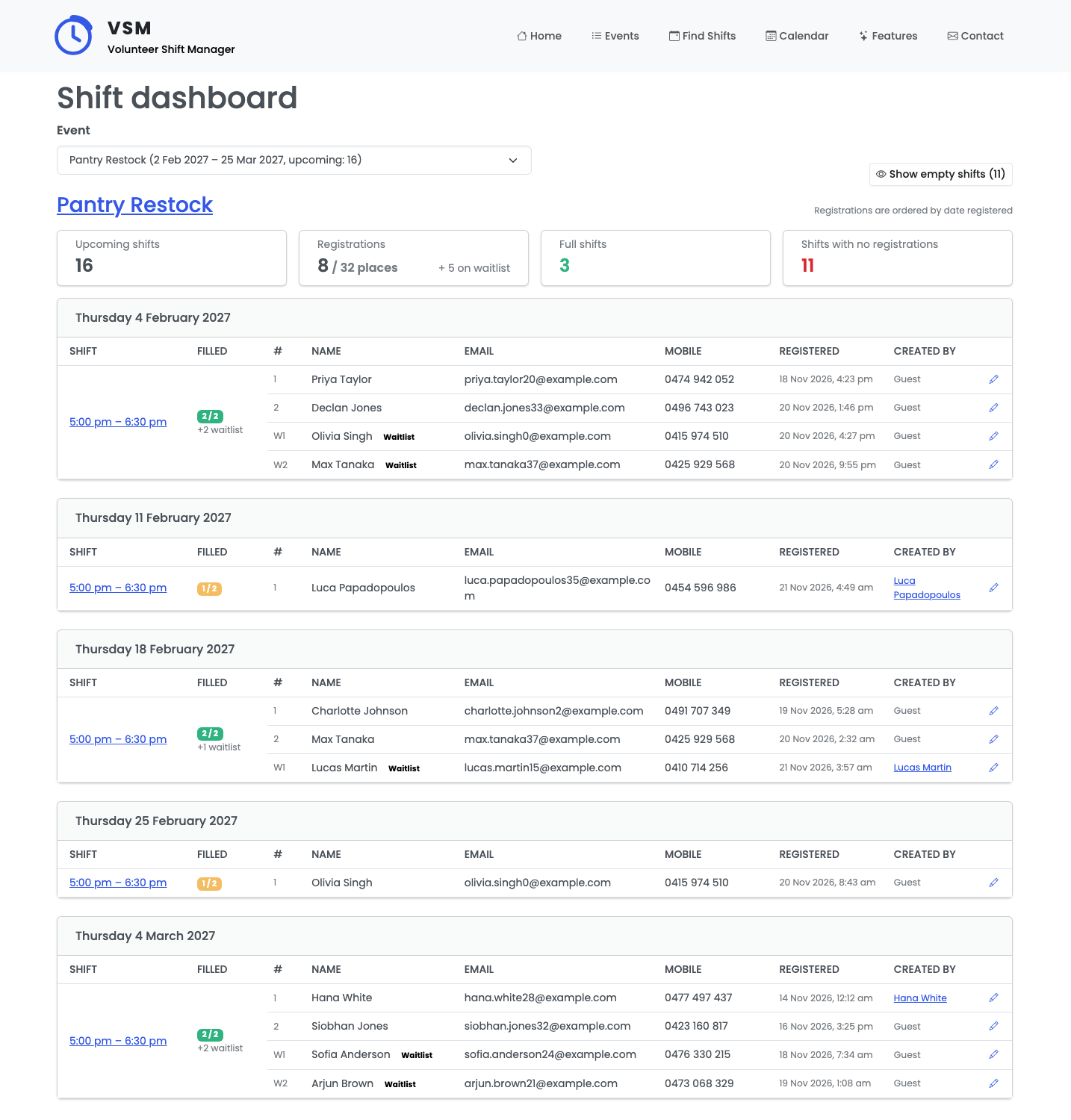
The Shift dashboard shows one event on a single page: every shift, grouped by day, with everyone registered for each. It's in the Manager menu, and is available to managers and to any other role given the View the shift dashboard permission.
- Choose an event – pick an event from the list at the top and the page updates straight away. Each event in the list shows its dates and how many upcoming shifts it has.
- Summary – four panels show the number of upcoming shifts (and how many are past), registrations against the places available (and how many people are on the waitlist), how many shifts are full, and how many have no registrations yet.
- How full each shift is – the Filled badge is green when a shift is full, yellow when it still has places, and red when nobody has registered, with the number on the waitlist underneath.
- Who is coming – each registrant is listed with their email, mobile, when they registered, and who made the registration: a member's name, or Guest when someone registered without logging in.
- Order – registrations are ordered by date registered, earliest first. Registered volunteers are numbered 1, 2, 3… and the waitlist follows as W1, W2… which is the order people move up in.
- Empty and past shifts – shifts with no registrations and shifts that have already happened are hidden to keep the page short. Show empty shifts and Show past shifts bring them back.
- Editing – the pencil at the end of each row opens the registration, and saving it returns to the dashboard.